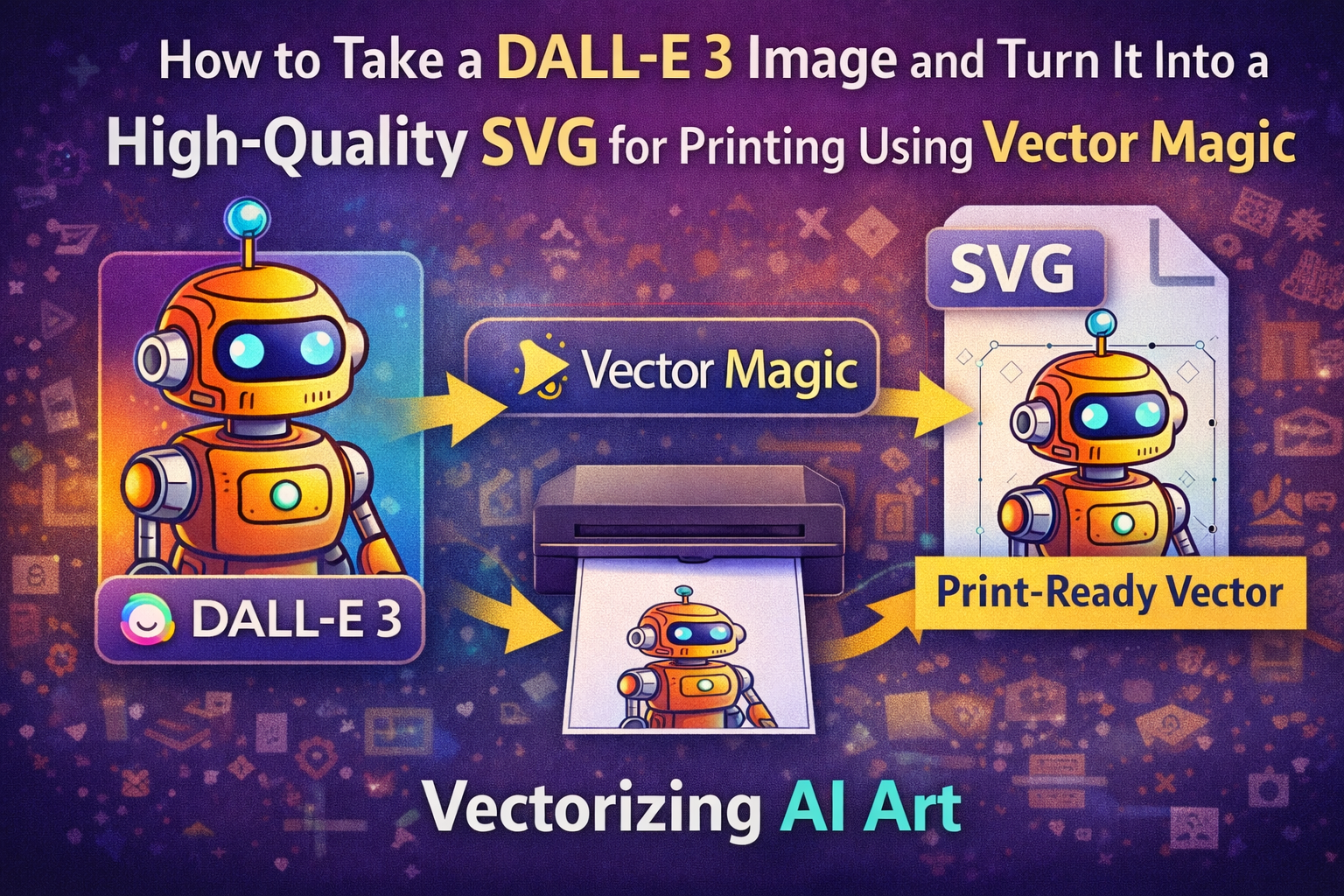
A few months ago I created a design with DALL‑E 3 that I absolutely loved. It was a retro robot illustration—clean lines, bold colors, perfect for a poster or a T-shirt.
So I downloaded the PNG, dropped it into a design tool, and tried to scale it for print.
That’s when the problem showed up.
The image looked sharp on screen. But when I enlarged it for a large poster, the edges started to blur. Zoom in further and the pixels became obvious. That’s the moment many creators run into the same realization: AI images are usually raster files.
Raster images don’t scale well.
To fix that, I ran the image through Vector Magic and converted it into a vector SVG file. The difference was dramatic. Suddenly the artwork could scale to billboard size without losing clarity.
If you’re working with AI images and want to print them professionally, learning how to vectorize AI art is a skill worth having.
Let’s walk through exactly how the process works.
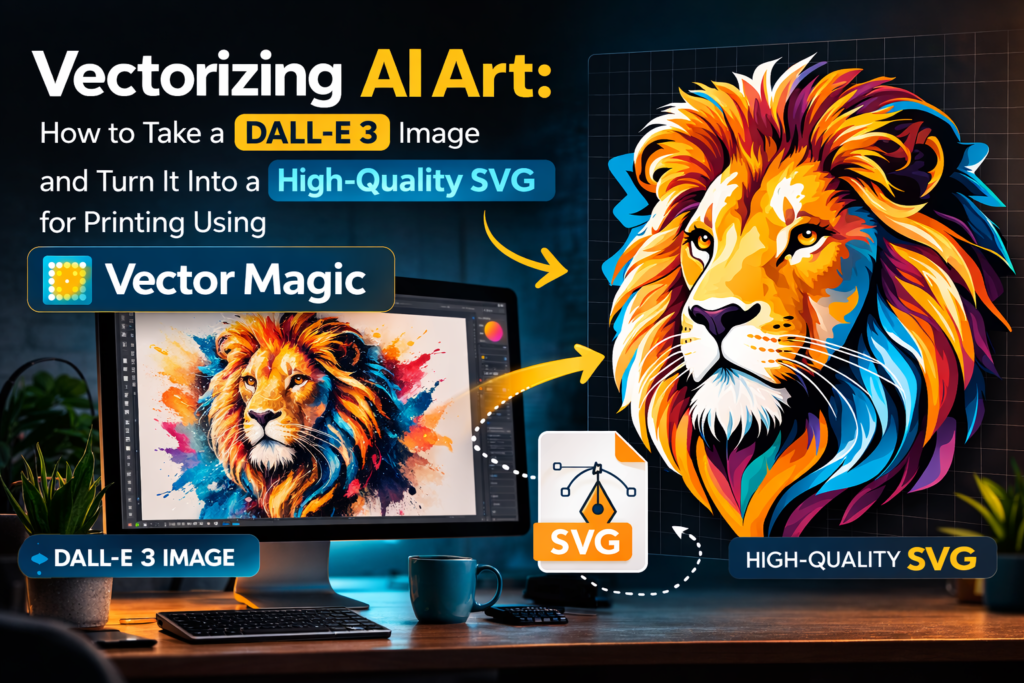
The Problem With AI Images: They Don’t Scale for Print
Most AI image generators—including DALL-E—produce raster graphics.
That means the image is built from thousands (sometimes millions) of tiny pixels.
Pixels are great for digital displays. They capture subtle textures, gradients, and lighting effects. But they come with one big limitation.
Resolution.
When you enlarge a raster image beyond its native resolution, the pixels stretch. Edges soften. Shapes lose precision.
For designers working on things like:
- posters
- merchandise
- vinyl decals
- stickers
that loss of clarity becomes a serious issue.
This is exactly where vector graphics come into play.
Read Also: How to Use NotebookLM to Upload Your Own PDFs
Raster vs Vector: Why SVG Files Are Better for Printing
To understand the solution, you need to understand the difference between two types of graphics.
Raster Graphics
Raster images are made from pixels arranged in a grid.
Examples include:
- PNG
- JPG
- BMP
They have a fixed resolution. Once that limit is reached, scaling creates distortion.
Vector Graphics
Vector graphics are built differently.
Instead of pixels, they use mathematical paths to define shapes.
Formats include:
- SVG
- AI
- EPS
Because vectors rely on mathematical formulas, they can scale infinitely without losing detail.
That’s why vector files are used for:
- logos
- large-format prints
- product packaging
- signage
If you plan to use AI artwork for real-world printing, converting it to a vector format is often the best approach.
What Vector Magic Does (And Why It Works Well)
There are many tools that attempt raster-to-vector conversion, but Vector Magic is one of the most reliable I’ve tested.
The software analyzes the image and reconstructs shapes using vector paths.
Here’s the basic idea.
How Vector Magic Converts Raster Images
When you upload a raster image, the software performs several steps:
- Detects edges in the image
- Identifies color regions
- Rebuilds curves using vector paths
- Smooths lines and shapes
Instead of simply tracing pixels, it reconstructs the geometry of the image.
That’s why the results often look cleaner than simple auto-trace tools.
Why It Often Beats Basic Auto-Tracing
Many designers are familiar with Adobe Illustrator and its “Image Trace” feature.
Illustrator works well for certain images, but it sometimes produces messy vector paths that require manual cleanup.
Vector Magic tends to generate smoother curves automatically, especially with:
- logos
- illustrations
- flat graphics
For print workflows, that accuracy can save a lot of editing time.
Vector Conversion Tools Compared
| Feature | Vector Magic | Illustrator Image Trace | Free Online Tracers |
|---|---|---|---|
| Accuracy | High | Medium | Low |
| Curve smoothing | Excellent | Good | Weak |
| Color detection | Strong | Medium | Weak |
| Output quality | Print-ready | Needs editing | Often rough |
| Best use case | Professional vectors | design adjustments | quick tests |
For creators who want clean vector results quickly, Vector Magic is often the easiest solution.
Step-by-Step: Turning a DALL-E Image Into an SVG
Here’s the workflow I typically follow when converting AI art into a vector file.
Step 1: Generate the Right Type of Image
Not every AI image converts well to vector.
Images with heavy textures or complex lighting can create messy vector paths.
The best candidates are:
- logos
- flat illustrations
- cartoon designs
- minimal shading artwork
When generating AI prompts, I often include phrases like:
- “flat color illustration”
- “minimal shading”
- “clean vector style”
These styles convert much more smoothly.
Read Also: How to Keep Your Company Data Safe When Using ChatGPT
Step 2: Download the Highest Resolution Version
Before converting the image, download the highest resolution available.
Higher resolution improves edge detection during the vectorization process.
Even though the final file will be scalable, starting with a detailed source image improves accuracy.
Step 3: Upload the Image to Vector Magic
Next, upload the image to Vector Magic.
The tool automatically analyzes the artwork and begins detecting shapes and edges.
This usually takes only a few seconds.
Once the analysis completes, the software presents a preview of the vectorized version.
Step 4: Adjust Vector Settings
Vector Magic allows you to tweak several settings before finalizing the result.
Important options include:
- color detail level
- edge smoothing
- detail complexity
If the artwork has too many small shapes, reducing the color detail can create a cleaner vector.
For print designs, simpler paths often work better.
Step 5: Export the SVG File
Once the preview looks good, export the artwork as an SVG file.
SVG files work well with many design tools, including:
- Adobe Illustrator
- Cricut design software
- printing workflows
The result is a fully scalable vector graphic ready for production.
Example: Turning an AI Illustration Into a Print Design
Let’s say you generate a retro robot illustration with DALL-E.
The original PNG works fine for social media. But for printing a T-shirt, you need sharper edges.
After converting the image with Vector Magic, the artwork becomes a clean SVG.
Now the design can scale for:
- large posters
- apparel printing
- vinyl stickers
- product packaging
Without losing detail.
That flexibility is one of the biggest advantages of vectorizing AI art.
My Real Test: Converting AI Art for Merch
One of my early experiments involved creating artwork for a small merchandise project.
The design was an AI-generated robot character. The PNG looked fantastic digitally.
But when I tried printing a large sample, the edges appeared slightly fuzzy.
After converting the artwork into an SVG using Vector Magic, the results improved dramatically.
Lines became sharper. Shapes looked cleaner. And the design scaled perfectly across multiple print sizes.
That experience convinced me that vectorizing AI art is essential for print-ready designs.
Common Mistakes When Vectorizing AI Art
Not every AI image converts cleanly.
Here are some mistakes I’ve seen repeatedly.
- using highly detailed photographs
- converting images with heavy gradients
- skipping color simplification
- ignoring manual adjustments
If the vector output looks messy, the problem often starts with the source image.
Simpler artwork usually produces the best vectors.
Pro Tip
Simplify AI artwork before vectorizing it.
If an image contains complex textures or gradients, try editing it first.
Reducing:
- shadows
- gradients
- small details
can dramatically improve the final vector quality.
Cleaner shapes lead to cleaner paths.
Advanced Tips for Better SVG Results
Once you get comfortable with the workflow, a few techniques can improve your results.
For example:
- generate AI art using flat colors
- limit the number of colors in the design
- refine paths in Illustrator after conversion
- remove unnecessary vector points
Small adjustments like these can transform a rough vector into a professional design.
Who Should Learn Vectorizing AI Art
This skill is especially valuable for creators working in print-focused industries.
For example:
- print-on-demand sellers
- Etsy shop owners
- merchandise designers
- illustrators
- graphic designers
If your work involves physical products, vector files quickly become essential.
Why Vectorizing AI Art Is Becoming a Valuable Skill
AI art tools have made illustration faster and more accessible than ever.
But generating images is only part of the workflow.
Turning those images into production-ready assets is where the real value appears.
Knowing how to convert raster AI artwork into vector files gives you much more flexibility.
You can scale designs, adapt them for print, and integrate them into professional design pipelines.
As AI-generated artwork becomes more common, the ability to vectorize AI art will likely become a standard skill for digital creators.
