Excel has a reputation. It’s the tool everyone needs, but most people secretly hate. Not because it’s bad—but because it’s picky. One missing bracket and your formula collapses. One messy column and your Pivot Table becomes a “crime scene.”
Now, add a deadline.
That was me last month. I had a spreadsheet full of sales data—inconsistent date formats, weird product names, extra spaces, and duplicate rows. I could either spend a full evening cleaning it… or test the 2026 version of Microsoft Copilot for Excel.
I’ll be honest: the first time Copilot generated a working multi-step formula I would normally Google for 20 minutes, I laughed out loud. It didn’t feel like “AI magic.” It felt like Excel finally learned how humans actually talk.
In this guide, I’m sharing my best Microsoft Copilot for Excel tips, including 10 high-performance prompts that will instantly level up your skills.
Why Copilot Inside Excel Feels Like “Cheating”
Excel is powerful, but the pain is always the same: you know the result you want, but you don’t know the exact formula or which hidden menu the Pivot Table setting is buried in.
Copilot bridges that gap. It turns Excel tasks into plain English conversation. Instead of struggling with XLOOKUP syntax, you simply tell the sidebar, “Match Product ID and Region and return Revenue,” and it builds it for you.
What’s New in 2026?
As of early 2026, Microsoft has introduced Agent Mode and Python Integration directly into the Excel sidebar. This means Copilot isn’t just suggesting formulas anymore; it can now:
- Run Advanced Data Science: It uses Python to perform regression analysis and forecasting without you typing a line of code.
- Analyze Sentiment: It can read customer reviews in your sheet and tell you if they are “Positive” or “Negative.”
- Self-Refresh: Pivot tables built by Copilot now auto-refresh when your source data changes.
Read Also: AI Agents vs. Chatbots: Why 2026 is the Year of Autonomous AI Workers
Before You Start: The “Golden Rules” of Copilot
Copilot isn’t telepathic. If your data is a mess, the AI will struggle. Follow these three rules to get “expert-level” results every time.
Rule #1: Convert Your Data to an Official Table
Copilot cannot read raw ranges effectively. You must select your data and press Ctrl + T (or go to Insert → Table). This gives the AI a structured boundary to work within.
Rule #2: Use “Human” Column Headers
Avoid headers like “Rev_Q1_26.” Use “Revenue Q1 2026.” Copilot uses these names to understand the context of your data.
Rule #3: Clear the Clutter
Remove merged cells and empty rows before prompting. Copilot loves a “clean grid.”
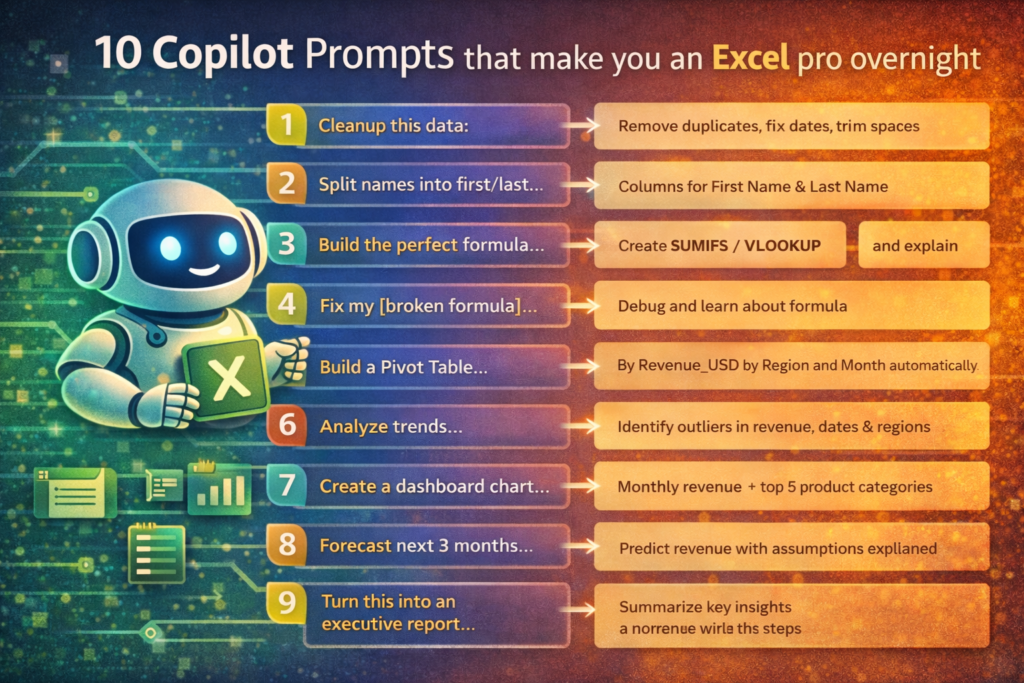
10 Expert Copilot Prompts (Copy & Paste)
1. The “Data Scrub” Prompt
Prompt: “Clean this dataset: remove duplicates, trim extra spaces, standardize capitalization for the [Category] column, and fix inconsistent date formatting in [Date Column].”
- Why it works: This replaces about 30 minutes of manual clicking and Power Query editing.
2. The “Intelligent Splitter”
Prompt: “Split the [Full Name] column into First Name and Last Name. If a middle name or initial exists, keep it with the First Name column.”
- Why it works: Handling middle names manually in Excel is a nightmare of
LEFT,FIND, andLENformulas. Copilot does it in three seconds.
3. The “Plain English” Formula
Prompt: “Create a new column that calculates a 15% bonus for sales reps, but only if their total revenue is above $50,000 and the Status is ‘Paid’. Otherwise, return 0.”
- Why it works: It builds a nested
IFandANDstatement perfectly the first time.
4. The “Error Detective”
Prompt: “This formula is returning a #VALUE error. Identify the mistake, fix it, and explain why it happened: [Paste Formula].”
- Why it works: This is the fastest way to learn Excel. It doesn’t just fix it; it teaches you.
5. The “Instant Dashboard” Pivot
Prompt: “Create a Pivot Table summarizing Total Sales by Region and Month. Sort it so the highest revenue is at the top and include a percentage-of-total column.”
- Why it works: Building complex Pivots with calculated fields is a “pro-level” skill. Copilot makes it a “novice-level” task.
6. The “Anomaly Hunter”
Prompt: “Analyze this data and find any outliers in the [Cost] column that are 2 standard deviations away from the mean. Highlight them in red.”
- Why it works: This is high-level statistical analysis. Copilot uses Python in the background to find data points that shouldn’t be there.
7. The “Future Forecaster”
Prompt: “Based on the historical sales in [Column A] and [Column B], forecast our revenue for the next 4 months. Use Python to account for seasonality.”
- Why it works: This leverages the 2026 Python integration to give you a projection far more accurate than a simple “trend line.”
8. The “Sentiment Extraction” (New for 2026)
Prompt: “Analyze the customer feedback in [Column E]. Add a new column called ‘Sentiment’ and label each row as Positive, Neutral, or Negative.”
- Why it works: This allows you to process thousands of customer reviews in seconds without reading a single word.
9. The “Executive Summary”
Prompt: “Summarize this entire spreadsheet into 5 bullet points for a management report. Highlight the biggest growth category and any regions that are underperforming.”
- Why it works: It turns raw data into a narrative. Perfect for pasting into an email or a PowerPoint slide.
10. The “Agent Mode” Automation
Prompt: “Enter Agent Mode. Every time I add new data to this table, I want you to automatically update the ‘Tax’ column and refresh the ‘Quarterly Summary’ chart.”
- Why it works: This turns Copilot into a “set and forget” assistant that manages the sheet for you.
Case Study: The 30-Minute Productivity Leap
I recently worked with a small business owner who had 5,000 rows of “Product Inquiries.” She was spending 4 hours every Friday manually categorizing them.
We used a Question Ladder with Copilot:
- Step 1: “Clean all the names and emails.” (30 seconds)
- Step 2: “Categorize the inquiry type based on keywords.” (1 minute)
- Step 3: “Summarize the top 3 complaints.” (1 minute)
The total time spent? Under 5 minutes. She saved nearly 4 hours of her life every week by moving from “manual labor” to “AI prompting.”
Frequently Asked Questions (FAQ)
Does Copilot work in the Excel Desktop app? Yes, but you must be using the Microsoft 365 version and your file must be saved to OneDrive or SharePoint. Copilot requires a cloud connection to process data.
Is my data safe with Copilot? Microsoft 365 Copilot (Enterprise version) does not use your business data to train its public models. Your data stays within your “tenant” (your company’s secure walls).
Can Copilot write VBA (Macros)? Yes, it can suggest VBA code blocks, but it is much better at using Office Scripts or Python, which are the newer, more secure ways to automate Excel in 2026.
What if Copilot gives me the wrong formula? Always check the “Explain Formula” feature. Copilot will walk you through its logic. If it’s wrong, simply reply: “No, that’s not right. Use the ‘Gross Revenue’ column instead of ‘Net’.” It will correct itself.
Final Take: You are Still the Pilot
Copilot doesn’t make Excel skills irrelevant—it makes them less annoying. You still need to understand your business and know which questions to ask.
But the days of “missing bracket” headaches are officially over. Start using these 10 prompts today, and I promise you’ll never look at a blank spreadsheet with dread again.
