My inbox used to be a mess.
Not the dramatic kind where thousands of unread emails pile up. Mine was worse in a quieter way. Every day there were dozens of business emails—client inquiries, partnership requests, invoices, newsletters, product updates. Individually they weren’t overwhelming. Together? They slowly ate hours of my week.
One afternoon I noticed something interesting. Most emails didn’t actually require a full read. I just needed the core information—who sent it, what they want, and whether I needed to act.
So I tried a small experiment.
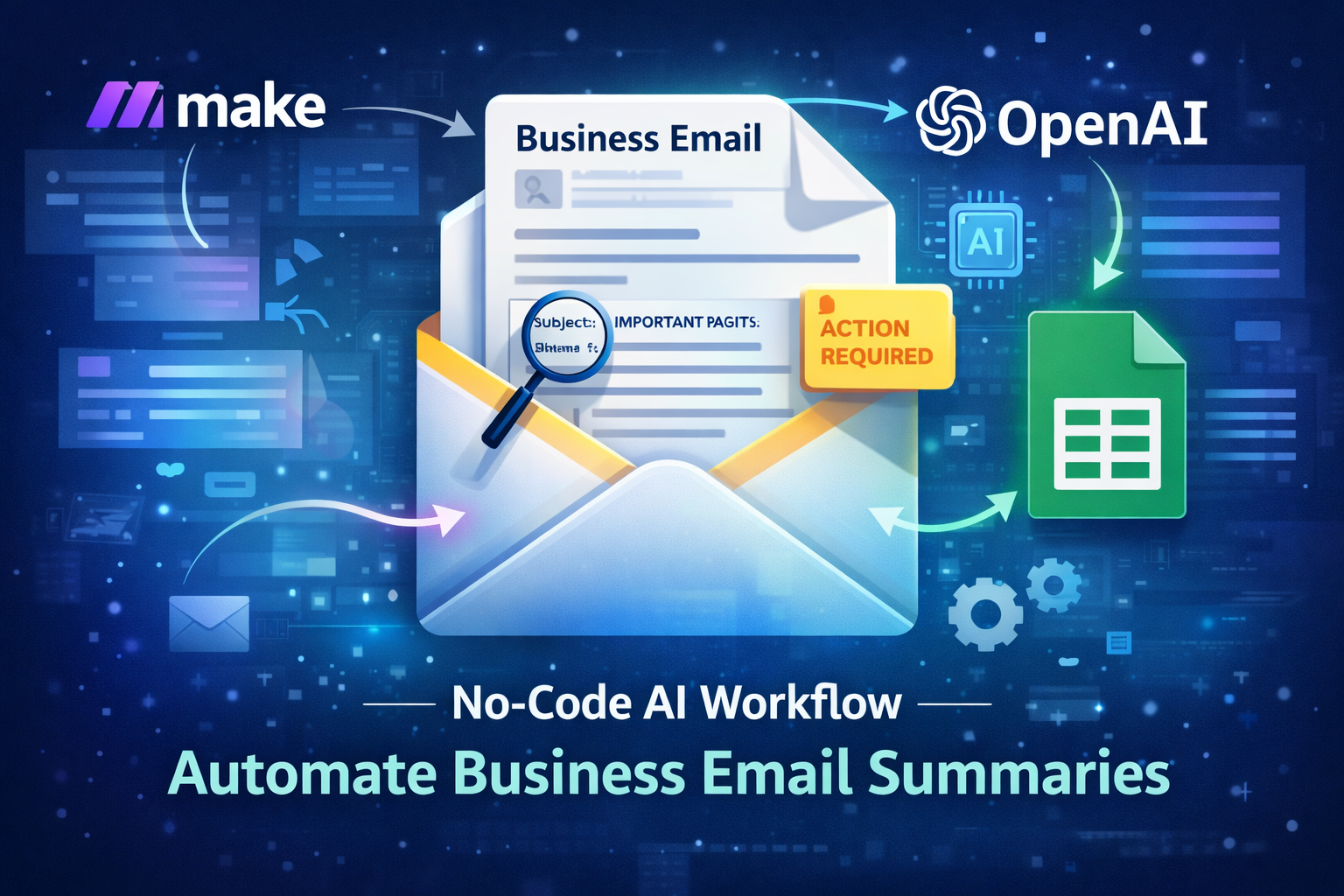
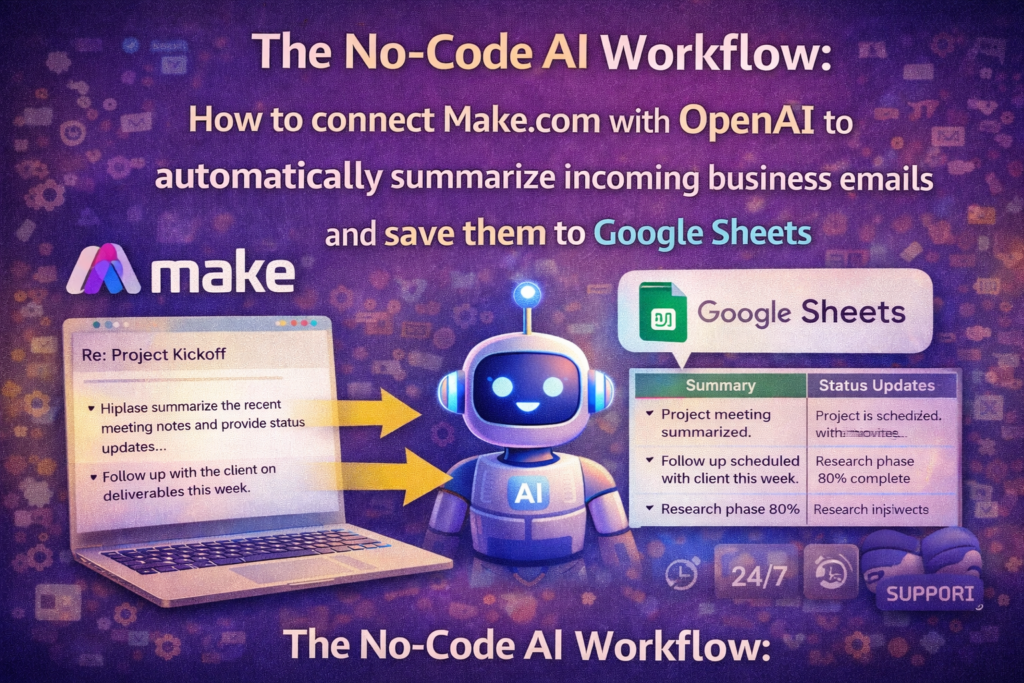
I built a simple No-Code AI Workflow using Make.com, OpenAI, and Google Sheets. The idea was straightforward: whenever a new email arrived, AI would summarize it automatically and log the summary into a spreadsheet.
The result? Instead of scanning dozens of emails, I could glance at one organized sheet and instantly know what mattered.
No coding. No complex setup. Just a clean automation doing the boring work.
If you’re dealing with email overload, this workflow might save you a surprising amount of time.
Let me walk you through exactly how it works.
What Is a “No-Code AI Workflow”?
A no-code AI workflow is exactly what it sounds like: automation powered by AI that you build without writing code.
Instead of programming scripts, you connect apps using visual tools. You drag modules together. You define triggers. The system handles the rest.
Think of it like building with digital LEGO blocks.
Each block represents a service—email, AI processing, databases, spreadsheets. When connected properly, they form a pipeline that moves information automatically.
Why Businesses Are Starting to Use Them
Even small teams can now build automations that used to require developers.
The benefits are pretty clear:
- repetitive tasks disappear
- information gets processed faster
- teams stay focused on meaningful work
- automations can run 24/7
In many cases, these workflows replace hours of manual admin work.
And the tools are surprisingly accessible.
The Tools Used in This Workflow
For this experiment, I used four main tools.
Make.com
A visual automation platform that connects apps together.
OpenAI
Used to generate intelligent summaries of emails.
Gmail (or business email)
The trigger that detects incoming messages.
Google Sheets
A simple database to store the summaries.
Each tool plays a very specific role. When combined, they create a smooth automation pipeline.
Read Also: How I Extracted Data from 100+ PDFs in Seconds
Why Email Summarization Is the Perfect First AI Automation
If you’re experimenting with AI automation, email summarization is one of the easiest places to start.
Emails contain structured information. They also repeat predictable patterns.
That makes them ideal for AI processing.
The Email Overload Problem
Most professionals underestimate how much time email consumes.
A few quick replies here. A few longer reads there. Suddenly thirty minutes disappears.
I tracked my own inbox activity for a week and realized something uncomfortable.
Almost 60% of emails didn’t require deep reading.
They just needed quick context.
- meeting requests
- client updates
- marketing pitches
- project reports
AI is excellent at extracting key points from text. That’s exactly the task we give it here.
What AI Summarization Solves
Once email summaries are automated, a few things change immediately.
- You scan information faster
- Important messages stand out quickly
- Action items become obvious
- You stop rereading long emails unnecessarily
When I started using this workflow, my email review time dropped dramatically.
Instead of opening every message, I simply checked the AI summary sheet first.
Only the important emails got my attention.
Make.com vs Zapier vs Native Email Rules
Automation tools come in many flavors. But for AI workflows, the platform you choose matters.
I tested three approaches.
| Feature | Make.com | Zapier | Native Email Rules |
|---|---|---|---|
| Visual workflow builder | Yes | Limited | No |
| AI integrations | Strong | Basic | None |
| Multi-step automation | Yes | Yes | No |
| Cost efficiency | Good | Higher | Free |
| Flexibility | High | Medium | Low |
Why Make.com Works Best
Make.com shines when workflows involve multiple steps and data transformations.
Its interface shows your automation as a visual scenario—a chain of connected modules. That makes debugging easier and adjustments straightforward.
Zapier can perform similar tasks, but the workflow control is more limited.
Native email filters, meanwhile, can only move messages between folders. They can’t summarize text or generate insights.
If you want AI inside your automation, Make.com provides more flexibility.
Step 1 — Preparing Your Email and Google Sheets Setup
Before building the workflow, you need a small amount of preparation.
Nothing complicated. Just a bit of structure.
Create Your Email Trigger
First, decide which inbox will trigger the automation.
Options include:
- Gmail
- Google Workspace email
- IMAP business email accounts
In my case, I used Gmail connected through Make.com.
You can also filter which emails trigger the workflow. For example:
- only unread emails
- only emails with certain labels
- only messages from specific senders
Filtering prevents unnecessary AI processing.
Set Up a Google Sheet for AI Summaries
Next, create a spreadsheet where the summaries will be stored.
The structure I used looks like this:
| Date | Sender | Subject | AI Summary | Action Needed |
|---|
This simple format works surprisingly well.
You can quickly scan the sheet and see:
- who contacted you
- what the email is about
- whether it requires action
It essentially becomes a daily briefing dashboard.
Step 2 — Building the Workflow in Make.com
Now comes the fun part.
In Make.com, automations are called Scenarios.
A scenario is simply a chain of connected modules performing tasks sequentially.
Creating a New Scenario
Start by opening Make.com and creating a new scenario.
Then add your first module.
- Select Gmail
- Choose Watch Emails
- Connect your email account
This module becomes the trigger for the entire automation.
Whenever a new email arrives, the scenario activates.
Detecting New Emails
Next you configure the trigger.
Common settings include:
- monitor inbox folder
- check only unread emails
- filter by keywords or labels
This step is important.
Without filtering, AI could end up summarizing every promotional email in your inbox.
Once configured, Make.com will detect incoming messages automatically.
Step 3 — Connecting OpenAI to Generate Email Summaries
Now we introduce the AI component.
After the email trigger module, add an OpenAI module.
Add the OpenAI Module
The setup process is simple.
- Select OpenAI from the module list
- Connect your API key
- Choose the model you want to use
Once connected, the module can process text from the email.
Writing the AI Prompt
This step determines the quality of your summaries.
The prompt I used looked like this:
“Summarize the following email in 2–3 sentences. Highlight any action required.”
Clear instructions produce better responses.
If your workflow involves sales emails, support tickets, or invoices, you can adjust the prompt accordingly.
Prompt design matters more than people expect.
A small wording change can dramatically improve summary accuracy.
Step 4 — Sending AI Summaries to Google Sheets
Once OpenAI generates the summary, the final step is saving the data.
Add another module.
Add the Google Sheets Module
Inside Make.com:
- Select Google Sheets
- Choose Add Row
- Connect your Google account
Now you map the information fields.
Typical mapping includes:
- email date → Date column
- sender name → Sender column
- email subject → Subject column
- OpenAI summary → AI Summary column
- detected tasks → Action Needed column
Once mapped, every summarized email automatically appears in your spreadsheet.
The automation pipeline is now complete.
Testing the Automation
Before relying on the workflow, test it.
I usually send myself a few different types of emails.
Then watch the system run.
The sequence should look like this:
- Email arrives in inbox
- Make.com detects the message
- OpenAI processes the content
- Google Sheets logs the summary
If everything works properly, the spreadsheet updates within seconds.
Watching the automation run for the first time is oddly satisfying.
Real-World Scenario: How This Workflow Saves Hours Each Week
After running this workflow for a few weeks, I noticed a clear change in my email habits.
Previously, my routine looked like this:
Open inbox.
Scan subject lines.
Open email.
Read entire message.
Repeat dozens of times.
Now it’s different.
I open my AI summary sheet first.
Within seconds I can see:
- urgent messages
- client requests
- informational emails that require no action
Most emails never need to be opened immediately.
This small shift reduced my email management time significantly.
And more importantly, it reduced cognitive clutter.
Common Mistakes When Building AI Email Automations
Automation works best when designed carefully.
Here are mistakes I’ve seen people make.
- not filtering irrelevant emails
- writing vague AI prompts
- storing messy, unstructured summaries
- forgetting API usage limits
- launching automation without testing
A few minutes of careful setup can prevent hours of frustration later.
Pro-Tip
Turn your spreadsheet into a daily AI briefing.
Instead of checking summaries individually, schedule another automation that sends a daily digest email from the sheet.
Every morning you receive a short report containing:
- important messages
- key updates
- tasks requiring attention
It feels surprisingly close to having a personal executive assistant.
Final Thoughts: The Power of No-Code AI Workflows
Automation used to be complicated.
Now it’s surprisingly approachable.
With tools like Make.com and OpenAI, even small teams can build systems that process information automatically.
This email summarization workflow is just one example.
Once you build your first automation, you start seeing opportunities everywhere.
Documents. Reports. Customer inquiries. Meeting notes.
AI workflows can quietly handle the repetitive work while you focus on decisions that actually matter.
And honestly, that’s the real value.
