If you’ve ever downloaded a 100-page PDF and instantly felt your soul leave your body… you’re not alone. These documents always show up at the worst time: a research report, a government policy paper, or a competitor’s strategy deck.
I used to handle this the “traditional” way: skim, highlight, and panic. Then I tested Google NotebookLM. It didn’t just summarize the PDF; it gave me a research-ready understanding with citations I could actually verify.
This guide is your hands-on walkthrough to mastering NotebookLM for research in 2026.
Why NotebookLM is the “PDF Killer”
The problem isn’t that PDFs are long; it’s that they are built like mazes. Important insights hide in the middle of dense paragraphs, and key definitions live in footnotes.
NotebookLM is different from a standard chatbot because it uses Source Grounding. It only answers based on the documents you provide. If the information isn’t in your PDF, the AI won’t “hallucinate” or make it up. It stays anchored to the truth.
What’s New in 2026: The Gemini 3 Power-Up
As of early 2026, Google has upgraded NotebookLM with the Gemini 3 model, which brings three massive changes:
- Massive Capacity: You can now upload up to 300 sources per notebook (previously 50).
- 1 Million Token Context: It can “remember” and connect ideas across thousands of pages at once.
- Multimodal Support: You can now upload YouTube URLs and audio files (MP3s) alongside your PDFs to build a “Second Brain.”
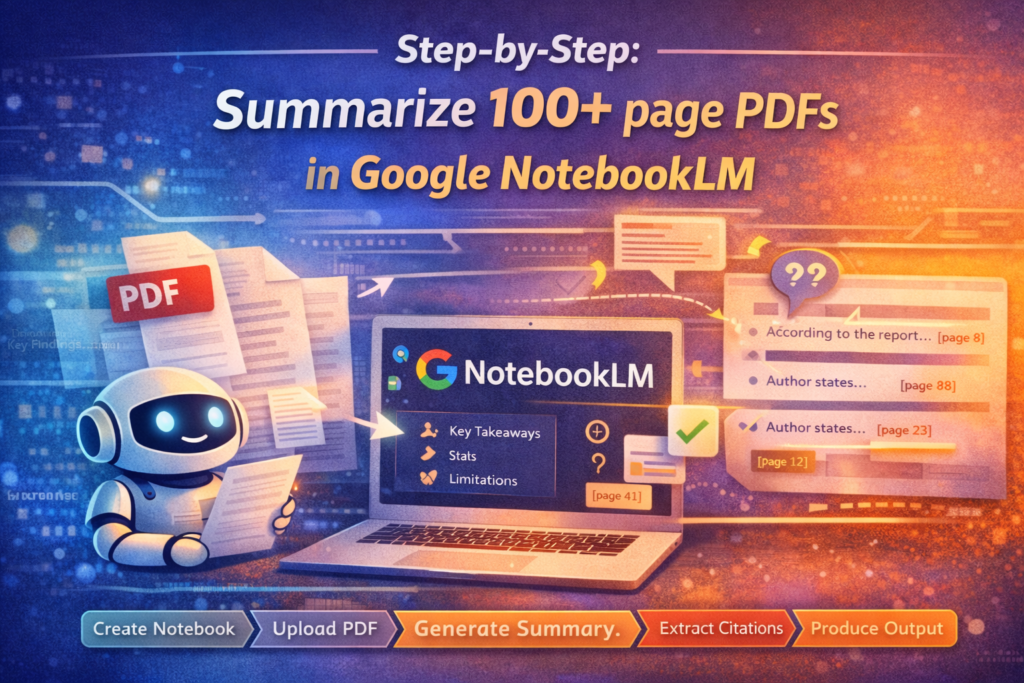
Step-by-Step: Summarizing Massive PDFs
Step 1 — Create Your Research Notebook
Open NotebookLM and create a new notebook. Name it by the project goal, not the file name (e.g., “Q1 Market Strategy” instead of “Report_Final_V2”).
Step 2 — Upload Your Sources
You can upload local PDFs, link to Google Drive files, or even paste a YouTube link.
- Pro-Tip: If your PDF is a “scanned” image (where you can’t highlight text), run a quick OCR (Optical Character Recognition) tool first so the AI can read the letters.
Step 3 — Use the “Question Ladder” Prompting
Don’t just ask “Summarize this.” To get expert-level insights, use this 3-step prompt sequence:
- “Give me a 5-bullet summary of the main claims.”
- “List every statistic or metric mentioned and the page number.”
- “What are the logical weaknesses or missing data points in this report?”
Step 4 — Generate an Interactive Audio Overview
This is NotebookLM’s “Killer Feature.” With one click, it creates a Deep Dive Podcast where two AI hosts discuss your PDF.
- New for 2026: You can now enter Interactive Mode. You can interrupt the hosts and say, “Wait, tell me more about that second point,” and they will explain it in more detail based on your sources.
Step 5 — Verify with Citations
When the AI answers a question, look for the small grey numbers. Clicking these will highlight the exact paragraph in your 100-page PDF where the info came from. Never trust a summary without a citation.
Read Also: How to Build an AI Email Automation Workflow
NotebookLM vs. ChatGPT: Which Should You Use?
| Feature | Google NotebookLM | ChatGPT (Pro/Plus) |
| PDF Limit | 300 Sources | 10-20 Files |
| Citations | Built-in (Click-to-find) | Text-based only |
| Audio | Interactive Podcast | Voice Mode |
| Best For | Deep Research & Fact-Checking | Creative Writing & Brainstorming |
Common Mistakes to Avoid
- The “Information Dump”: Uploading 50 PDFs without a clear goal will lead to generic answers. Focus your notebook on one specific topic.
- Ignoring the “Notes” Feature: When you find a good insight, click “Save to Note.” This keeps your best data in a clean sidebar so you don’t have to ask the same question twice.
Final Take
NotebookLM isn’t just a tool for lazy reading; it’s a tool for aggressive learning. It allows you to process 1,000 pages of information in the time it used to take to read 10.
This video walkthrough shows how you can use NotebookLM’s newest features to turn complex documents into a fully structured research report in a fraction of the time.
